
Outside Search Tabs
Outside of the tabs in order entry are two quick-search fields: order # and reference.

Order # Search
If a user knows the exact order number that they need to pull up, they can do so by entering the number into the Order # field at the top and pressing Enter (or clicking the Go button). The order will open, staying on the same active tab.
Reference Search
The Reference Search field will conduct a wildcard-enabled search for the entered value appearing in any of the following fields:
Auth
Order Alias
Order Reference
Invoice Reference
Piece Reference
Piece Alias
Piece Container Reference
Any stop note
The search will also incorporate any filters set in the Find tab.
To the right of the text field, a user can set the number of days to look back, anywhere from same day to 10 days back (based on the date the order was placed). If more than one order matches the search, the most recent one will be pulled up.
Example search:
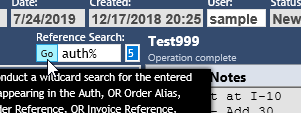
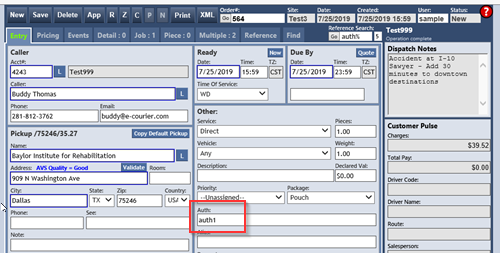
The above search will look for orders placed within the last five days where at least one of the reference values starts with "auth."
Result:
Find Tab
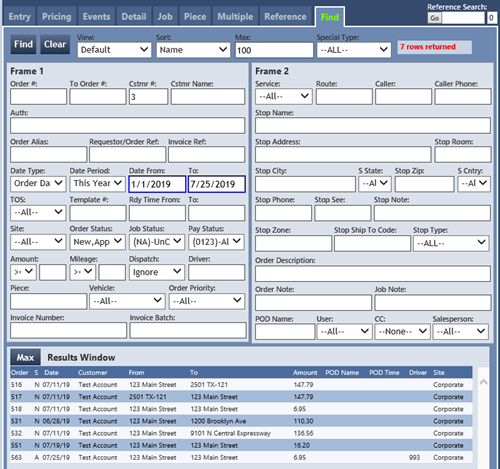
The Order Entry CSHTML > Find tab has the same capabilities as the old order entry's Find tab as well as additional functionality. When all needed criteria have been entered, click the Find button in the upper left corner for results, or click the Clear button to start over.
Viewing and sorting options
Along the top of the Find tab are the various viewing and sorting options.
View - choose from Default, POD, Name, City, Route, ReadyTime, Auth, Stop Names, or Auth/Invoice views, depending on preference and what information is needed.
Sort - choose whether results should be ordered by Name, Order #, Driver Code, or Ready Time. All columns in the Results window are also click-sortable.
Max - the maximum number of results. Putting a high number in this field may slow down search results. The Find tab can display up to 2,000 results. If more than 2,000 records are needed in a view, we recommend using a report instead.
Special Type - choose whether all orders are included, or if there should be a filter for 2+ jobs, 3+ stops, or to exclude daily orders.
Results count - shows how many results were returned from the most recent search. If the number is equal to the Max, increase the Max to make sure there aren't hidden results.
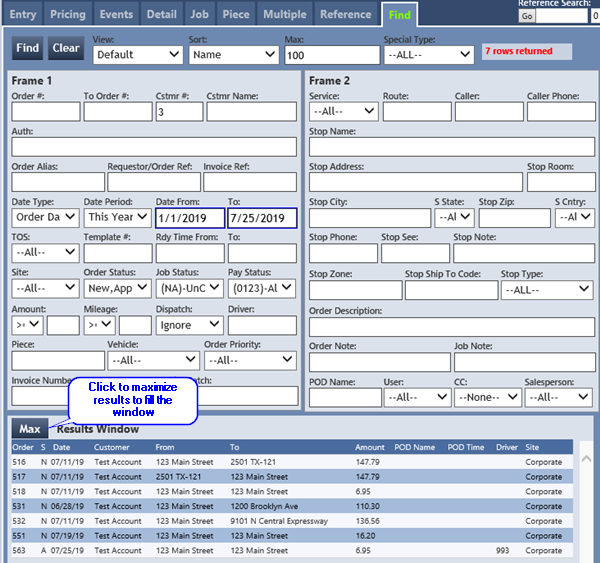
Frame 1
Frame 1 on the Find tab has filters at the Order level for the following fields. Many of the fields allow for searching with wildcard characters, which is noted in the tool tip when the mouse hovers over a field. For more information on which wildcard characters can be used, see our Wildcard Logic section.
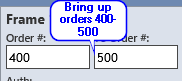
Order # and To Order # - search for either a single order number or a range of order numbers.
Cstmr # - Customer account number
Cstmr Name - Name on the customer account; wildcard characters allowed
Auth - Wildcard characters allowed
Order Alias - Wildcard characters allowed
Requestor / Order Ref - Wildcard characters allowed
Invoice Ref - Invoice reference or the PaymentGatewayLog Reference (PGRefID)
Date Type - Choose whether to filter dates based on the Order Date, Picked Up Date, Due Date, Delivery Date, or Invoice Date
Date Period - Choose a type of date period (such as this week to date, last month, this year, etc) or a custom range
Date From and Date To - Set the desired date range. Click inside each box for a calendar, type the date freehand, or use + or - shortcuts. Typing -10 will enter the date 10 days before the current date; similarly, typing +10 will enter the date 10 days after the current date.
TOS - Filter on Time of Service
Template # - Find orders created from a given template number
Rdy Time From and To - Ready time in the 24-hour format (for example, to filter for orders ready from 11:00am to 2:30pm, enter "11:00" in Rdy Time From and enter "14:30" in Rdy Time To).
Site - Search by Company Site
Order Status - Choose from any of the individual order statuses, or one of the following groupings: All + Deleted, New + Approved, Invoiced + Paid
Job Status - Choose from any of the individual job statuses, or one of the following groupings: New + Assigned (uncompleted), New + Assigned + Completed (unapproved), New + Assigned + Completed + Verified (unpaid), New + Assigned + Completed + Verified + Paid (all)
Pay Status - Choose from any of the individual pay statuses, or one of the following groupings: 0 + 1 (not processed), 1 + 2 + 3 (processed), 0 + 1 + 2 + 3 (all)
Amount - Choose a comparative operator and the amount to compare it to (for example, all orders where the total is <= $100)

Mileage - Choose a comparative operator and the amount to compare it to (for example, all orders where the total mileage is > 50 miles)

Dispatch
Driver - Driver / Agent / Carrier code
Piece - Piece reference; wildcard characters allowed
Vehicle
Order Priority
Invoice Number
Invoice Batch
Frame 2
Frame 2 on the Find tab primarily has Stop level filters for the following fields. Many of the fields allow for searching with wildcard characters, which is noted in the tool tip when the mouse hovers over a field. For more information on which wildcard characters can be used, see our Wildcard Logic section.
Service
Route - Job route (or flight number if job mode = air); wildcard characters allowed
Caller - Wildcard characters allowed
Caller Phone - Wildcard characters allowed
Stop Name - Stop name (or airport code if job mode = air); wildcard characters allowed
Stop Address - Wildcard characters allowed
Stop Room - Wildcard characters allowed
Stop City - Wildcard characters allowed
S State
Stop Zip - Wildcard characters allowed
S Cntry
Stop Phone - Wildcard characters allowed
Stop See - Wildcard characters allowed
Stop Note - Wildcard characters allowed
Stop Zone - Wildcard characters allowed
Stop Ship To Code - Wildcard characters allowed
Stop Type - Choose from Pickup, Delivery, or Both
Order Description - Wildcard characters allowed
Order Note - Wildcard characters allowed
Job Note - Wildcard characters allowed
POD Name - Wildcard characters allowed
User - User that created the order
CC - Choose from "COD Not Charged" (order that should have a PG transaction but have not yet been charged) or "COD Charged / Order" (PG transactions applied to orders)
Salesperson
Search Results Window
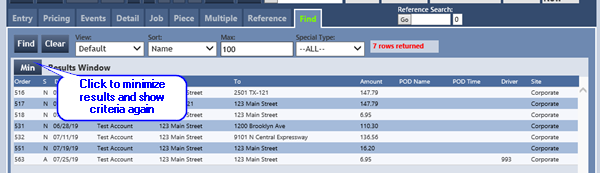
After clicking the Find button, the Results Window at the bottom will automatically maximize to take up the entire view in the tab to make the list easier to read. The Results Window can be toggled between the full and half screens by clicking the Max or Min button next to the Results Window title.
Wildcard Search Logic
Often when searching for an order, a user may only have partial information; for example, they need to find all orders with a stop at any street number on Main Street. Using wildcard logic in the Order Entry CSHTML > Find tab, they can locate orders matching that criteria.
Uses in order entry
The Order Entry CSHTML > Entry tab allows for wildcard 'Lookup' logic in the following fields:
Caller frame > Account field - When doing lookup by Name instead of Account Number
Caller frame > Caller field - When doing lookup by Caller Name
Pick Up frame > Name field - When doing lookup by Name
Pick Up frame > Address field - When doing lookup by Address
Destination frame > Name field - When doing lookup by Name
Destination frame > Address field - When doing lookup by Address
The Order Entry CSHTML > Multiple tab allows for wildcard 'Lookup' logic in the following fields:
Stop Address frame > Name field - When doing lookup by Name
Stop Address frame > Address field - When doing lookup by Address
The Order Entry CSHTML > Find tab allows for wildcard logic in the following fields:
Name
Address
City
Zip
Dispatch Zone
Auth
Alias
Caller
Caller Phone
Customer Name
Piece Reference
Route
Note: Other places in e-Courier that wildcard logic can be used include the Name and City in the Client Information > Find tab, the Name and SS in the Driver Information > Find tab, the Name in Rate_Setup > Range, and can be used in Zip Zone and Zone Rate as well as the Name and Address fields in Web Remote Power Tracking.
Wildcard List
The following table shows how to use wildcard characters. Using multiple wildcards at once can allow for highly complex searches.
Wildcard: %
- Matches: One or multiple alphanumeric characters
- Example Search: test%
- Example Results: test0 / testabc
Wildcard: _
- Matches: One alphanumeric character
- Example Search: _test
- Example Results: atest / 1test
Wildcard: [ ]
- Matches: Alphanumeric character(s) inside brackets. Can use specific characters, an alphabetical range, or a numeric range
- Example Search: [c-p]abc
- Example Results: cabc / labc / pabc
Wildcard: [^]
- Matches: Results without the alphanumeric character(s) within the brackets
- Example Search: de[^a]
- Example Results: deb / de0
Setting up Reference Values
Reference Values - Here is a short Video on setting up Reference Values. See more detailed information on eSheet 51.