
There are three ways to make an order into a round trip: using the Round Trip button to make two separate orders, using the Return button to make a single order with three stops, or using the Return button to make a single order with four stops.
One-time setup
Before creating a round trip order, set the following logic based on which round trip method is preferred:
In Utility > General Parameters > Config-General tab > Misc frame > OrderEntryReturn combobox, set to preference. There are three options, corresponding to each method:
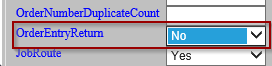
No - Method 1, default value. Allows user to create a second order with round trip logic after saving the initial order.
Create 3 stop order - Method 2. Allows user to keep a single order with job stop sequence pickup A, destination B, back to destination A.
Create 4 stop order - Method 3. Allows user to keep a single order with job stop sequence pickup A, destination B, pickup B, back to destination A.
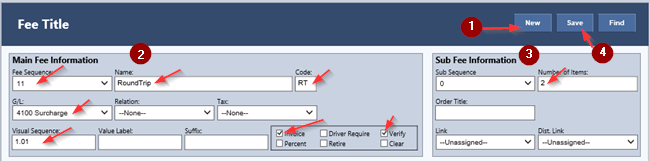
2. METHODS 2 AND 3 ONLY - In Rates_Maint. > Fee Titles, click New, set fields as shown below, and click Save
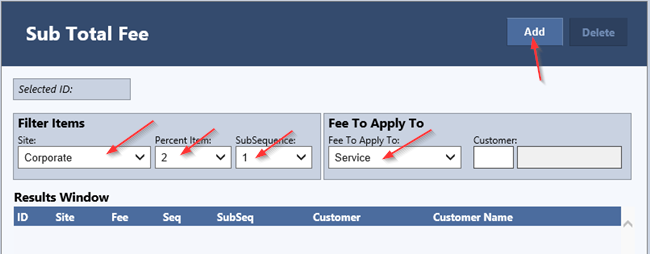
3. METHODS 2 AND 3 ONLY - In Rates_Maint. > Sub Total Fee, set the fees that the return % will apply to, then click Add. Set this for each desired fee
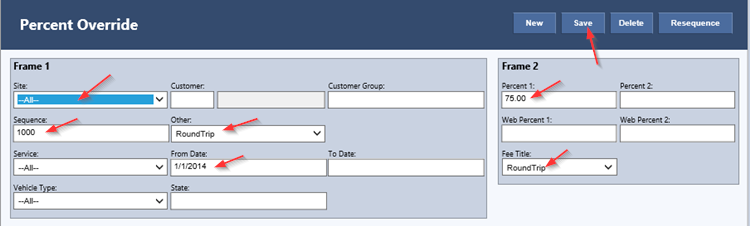
4. METHODS 2 AND 3 ONLY - In Utility > Percent Override, set the fields as desired for a round trip surcharge. Below screenshot is an example of a 75% surcharge. Remember to set the sequence for a higher number than any currently existing in the table
Method 1: Two separate orders
To create a second separate order with the return trip (order 1 as pickup at A and destination at B, order 2 as pickup at B and destination at A), follow the directions for one-time setup, then perform the following steps:
Create and save an order with the initial pickup address in the Pickup frame and the initial destination in the Destination frame
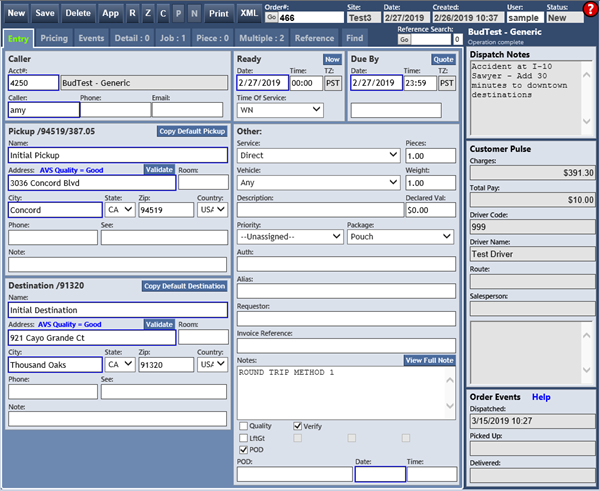
2. If using old Order Entry, press Alt-Z on the keyboard. If using Order Entry CSHTML (as in above screenshot), press Ctrl-Alt-Z on the keyboard or click the Z button at the top of the screen.
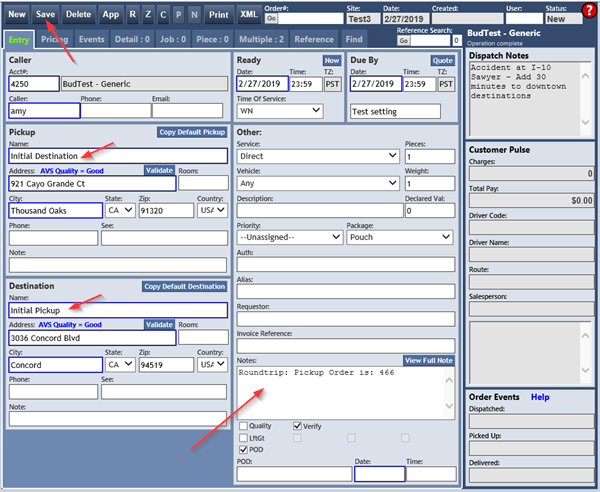
3. The system will create a new order that swaps the pickup and destination addresses and enters a note referencing the pickup order. Review the information, then click Save.
Method 2: Single order with three stops
To have a single order with three stops (pickup at A, destination at B, and destination back at A), follow the directions for one-time setup in the top section, then perform the following steps:
Create and save an order with the initial pickup address in the Pickup frame and the initial destination in the Destination frame
In the Destination frame, click the Return button, then click Save
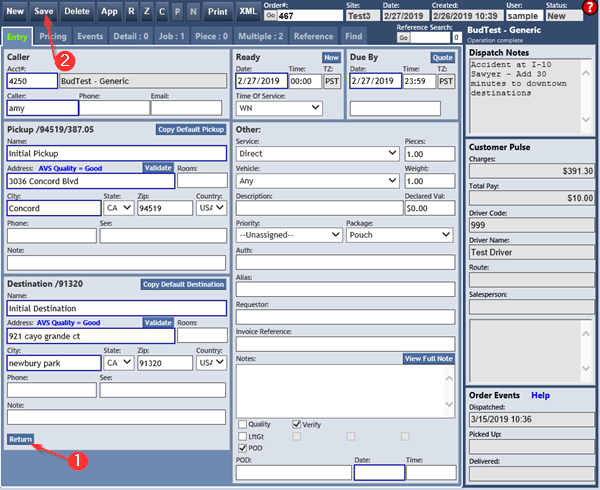
3. The Multiple tab of the order will now be highlighted in green along the top of the tab, and there will now be three job stops instead of two.
Method 3: Single order with four stops
To have a single order with four stops (pickup at A, destination at B, pickup at B, destination back at A), follow the directions for one-time setup in the top section, then perform the following steps:
Create and save an order with the initial pickup address in the Pickup frame and the initial destination in the Destination frame
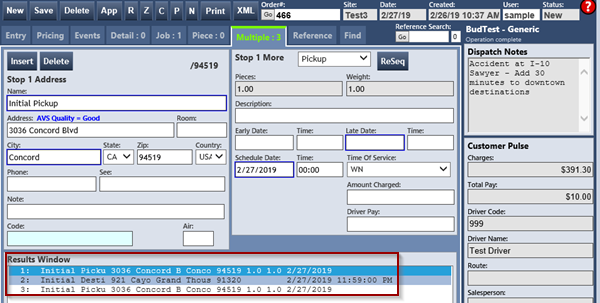
In the Destination frame, click the Return button, then click Save
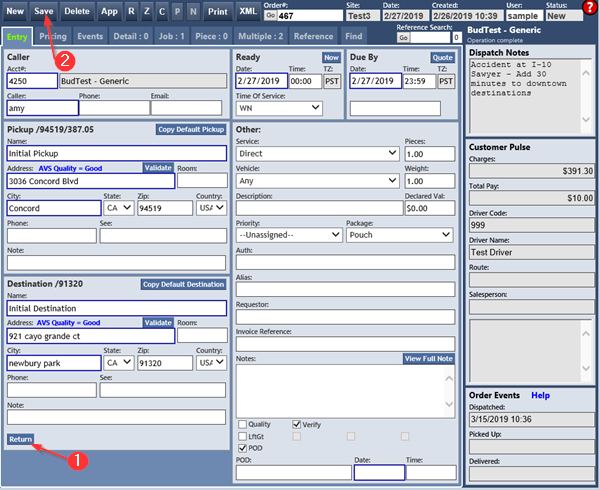
3. The Multiple tab will now be highlighted in green along the top of the tab, and there will now be four job stops instead of two.
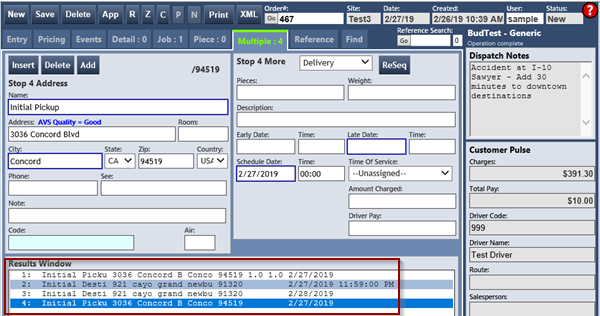
Notice that methods 2 and 3 are essentially the same setup and procedure. The only difference is the configuration in Utility > General Parameters > Config-General tab > Misc frame > OrderEntryReturn combobox (step 1 in the one-time setup).
Removing round trip logic from an order
If it becomes necessary to remove the round trip logic from an order created in methods 2 and 3:
In Entry tab > Other frame > Notes field, delete the "ROUND TRIP ORDER" note
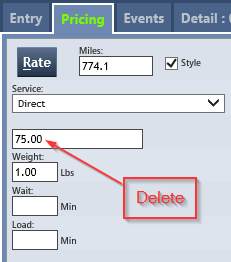
In Pricing tab, remove the RoundTrip percentage and fee (if any)
3. In Multiple tab, delete the return job stop(s). Job stops can only be deleted one at a time.
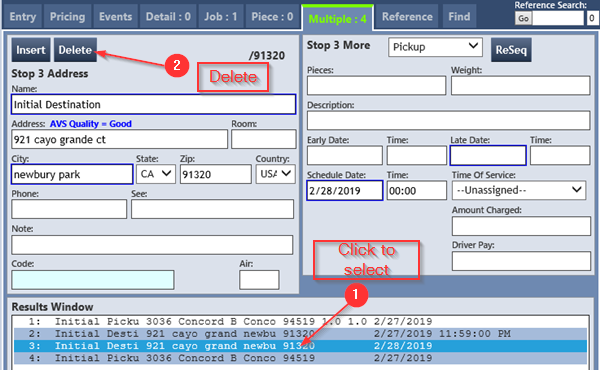
4. Click Save